
Whether you use a foresight radar or technology radar for horizon scanning, sensemaking or stakeholder discussions, you can now spend your time on the trends instead of searching for them.
With our latest update, the FIBRES radar visualization now keeps every item in the same place when you reload, navigate away or switch radars. Bubbles no longer overlap, about 2-3 times as many item labels are visible in our test radars, and even very crowded radars stay fast.
At a glance
- What changed: items keep their position, bubbles no longer overlap, more labels are visible, and crowded cells collapse into a count.
- Who it helps: anyone using a FIBRES trend radar, technology radar or foresight radar, from horizon scanning on your own to sensemaking, validation and stakeholder workshops with your team.
- Available: now, for all FIBRES customers.
- Good to know: item placement within a cell is automatic. You can drag items between cells to quickly re-assess.
Stable item positions on your radar
In the FIBRES trend radar, the layout of items now only changes when items are added, removed or moved between cells.
Reload the radar, navigate to and from it, or switch between radars, and every item is where you left it. You can keep a mental picture of your landscape, point out an item to a stakeholder and find it again next time.
The items also appear on the same positions on all major browsers and operating systems, making it simple to coordinate between users working on separate devices.
No more overlapping bubbles, more visible labels
Items now use the space available on the radar in a more optimized way. The bubbles no longer overlap, and in our test radars about 2-3 times as many item labels are visible than before, so more of your trends can be read at a glance.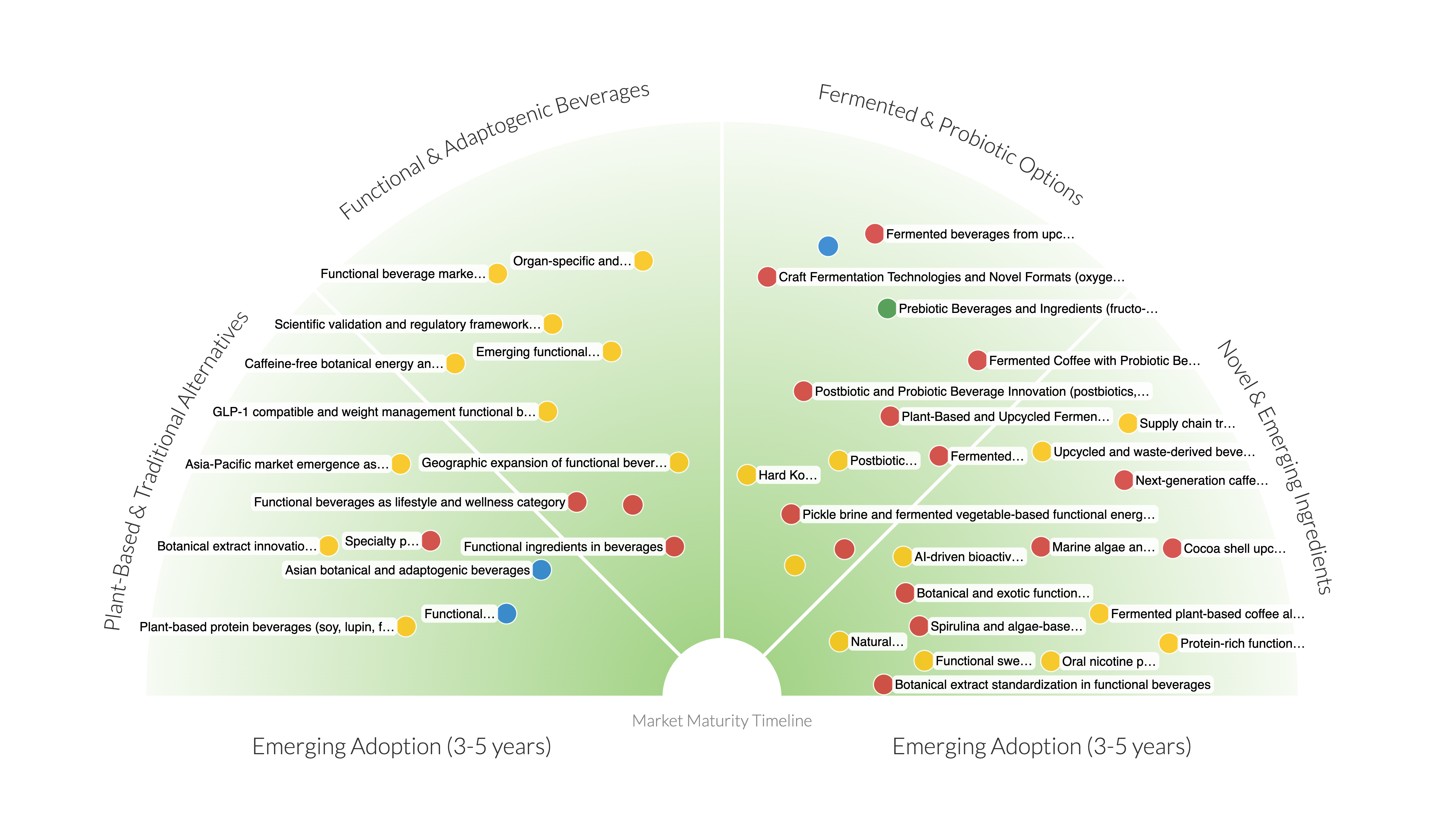 Labels also no longer run into the sector titles at the edge of the radar. The layout is still automatic and dynamic, so it can't be perfect in every case, but it's a big step forward.
Crowded radars stay fast
A crowded cell collapses into a single marker showing how many items it holds. Click the marker to show them.
We tested radars of every size: sparse ones, typical radars of around 60 items, dense radars of 120+ items and an extreme case of close to 2,000 items.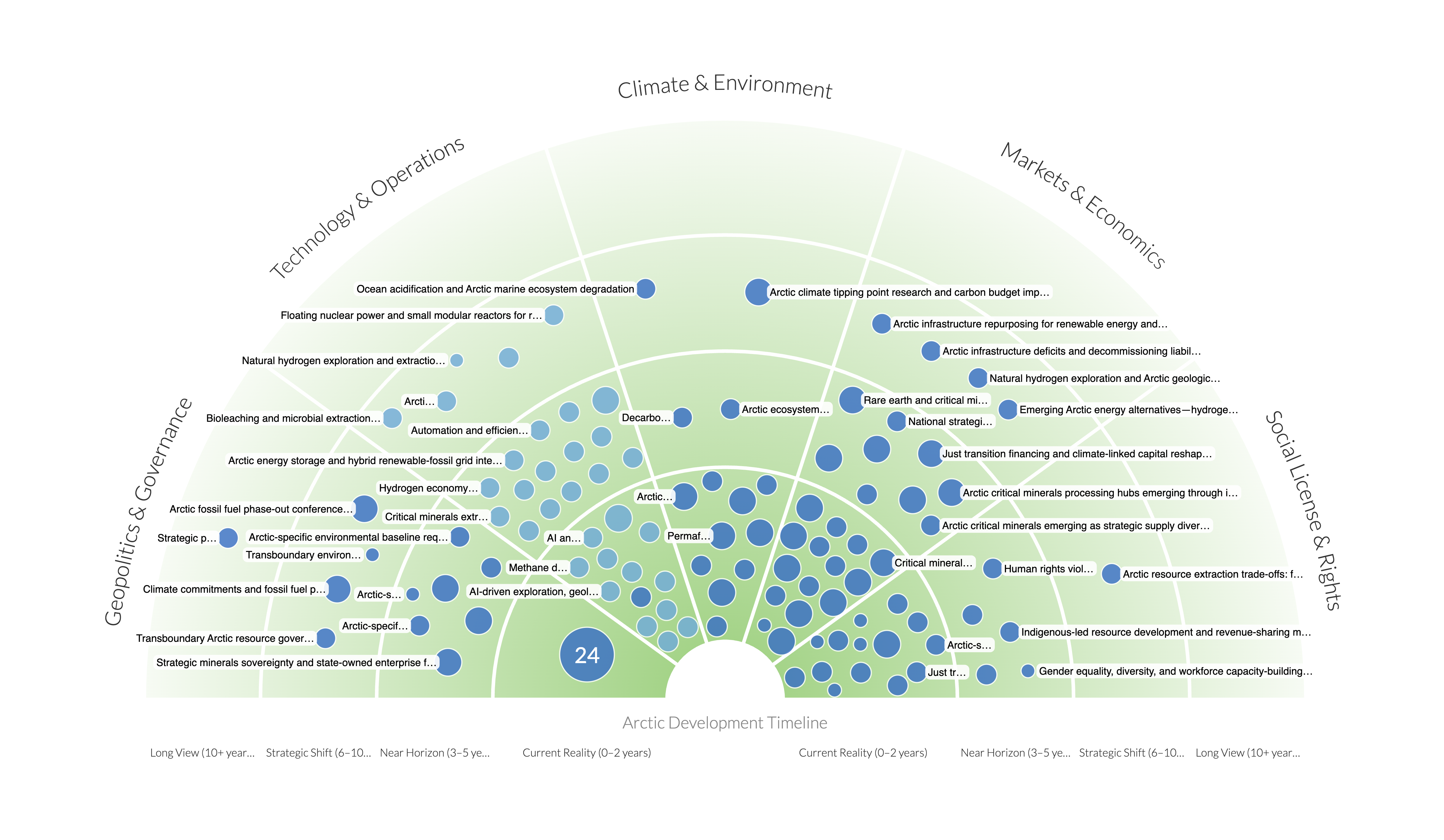 Performance is more than acceptable, even in the extreme case. We don't recommend radars that large for most foresight work, but it shows the FIBRES radar can now handle it.
Share, facilitate and workshop with your foresight radar
When you share a trend radar, technology radar or foresight radar with colleagues or stakeholders, or embed it for a wider audience, everyone finds the items in the same places.
That makes it easier to collaborate on sensemaking and validation, and to explain your radar to the people you want to engage or influence. Nobody has to ask "where did that item go?" after a reload or when coming back from another view.
How to zoom into one cell of the FIBRES radar (a cell is one sector at one horizon):
- Click the background of the cell to expand it and give its items room.
- Click the background again to contract it.
- To work with a whole sector or horizon instead, expand and contract it as before by clicking the corresponding label.
Keep track of the items you're discussing. In a sensemaking, validation or horizon scanning workshop, items don't jump around the cell when you reload or come back to the radar in another session. The facilitator's screen shows the same layout of items as every participant's own device screen. The group can follow the items under discussion, agree what they mean for your decisions and pick up where you left off.
Good to know
Items are still placed automatically by their sector and horizon, so the layout is dynamic and won't be perfect in every dense cell. You can still drag an item to another cell to reassess it, as before, but you can't place it at a chosen spot within a cell. In a very dense radar it still isn't always possible to show every label at once, which is why collapsing and expanding cells is there as well as the A+/A- control for setting the optimal label font size for your use.
Frequently asked questions
Why did items move when I reloaded a radar?
Earlier versions recalculated item positions on every load of the radar using a different algorithm, so items could end up in different spots. In the FIBRES radar, the layout now only changes when items are added, removed or moved between cells, as the new algorithm re-optimizes the layout.
How do I expand a single cell on the radar?
Click the background of the cell to expand it and click it again to contract it. Expanding and contracting whole sectors and horizons works as before.
Can I drag items on the radar?
Yes, if you have permission to edit the radar, you can drag an item to another cell to reassess it. You can't place it at a chosen spot within a cell, because placement within a cell is automatic.
How many items can a FIBRES radar handle?
Crowded cells collapse into a count marker, and you can click it to show the items. We tested sparse radars, typical radars of around 60 items, dense radars of 120+ items and an extreme case of close to 2,000 items, and performance was more than acceptable. Most radars should hold far fewer items than the extreme case.
This update grew out of the valuable feedback we get from our active users: bubbles that jumped around, overlapped, hid their labels or slowed down big radars. We thank our users for caring about the quality of FIBRES as much as we do. Such input helps us improve the experience and usability of the platform for all our users.